
Please go steps below:
1) Please login to the s-Log Recorder.
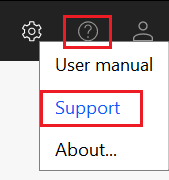
2) Please press the "?" mark (top right) and select "Support".
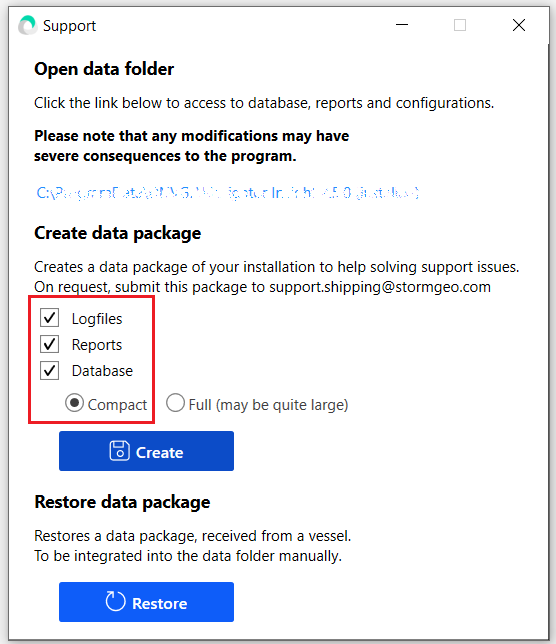
3) The Support window appears, where you can select what you want to export. The "Logfiles" are selected by default. To create a full database extract, you should also check "Reports" and "Database" and click on the button "Create".
4) In the appeared Windows file save dialog please select the desired location to save the database extract file.
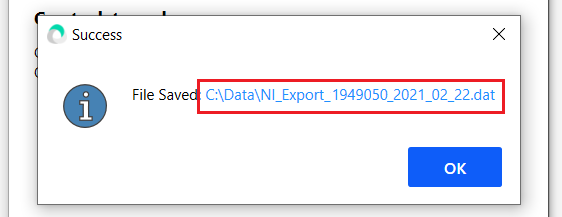
5) When the file is saved, you will see a confirmation pop-up window with the active link to the saved file location. Please click on the link to be redirected to this location.
6) Please sent as an attachment this created database extract file to the requester by email.
In case of further questions, please do not hesitate to contact us by email at shipping.support@stormgeo.com.